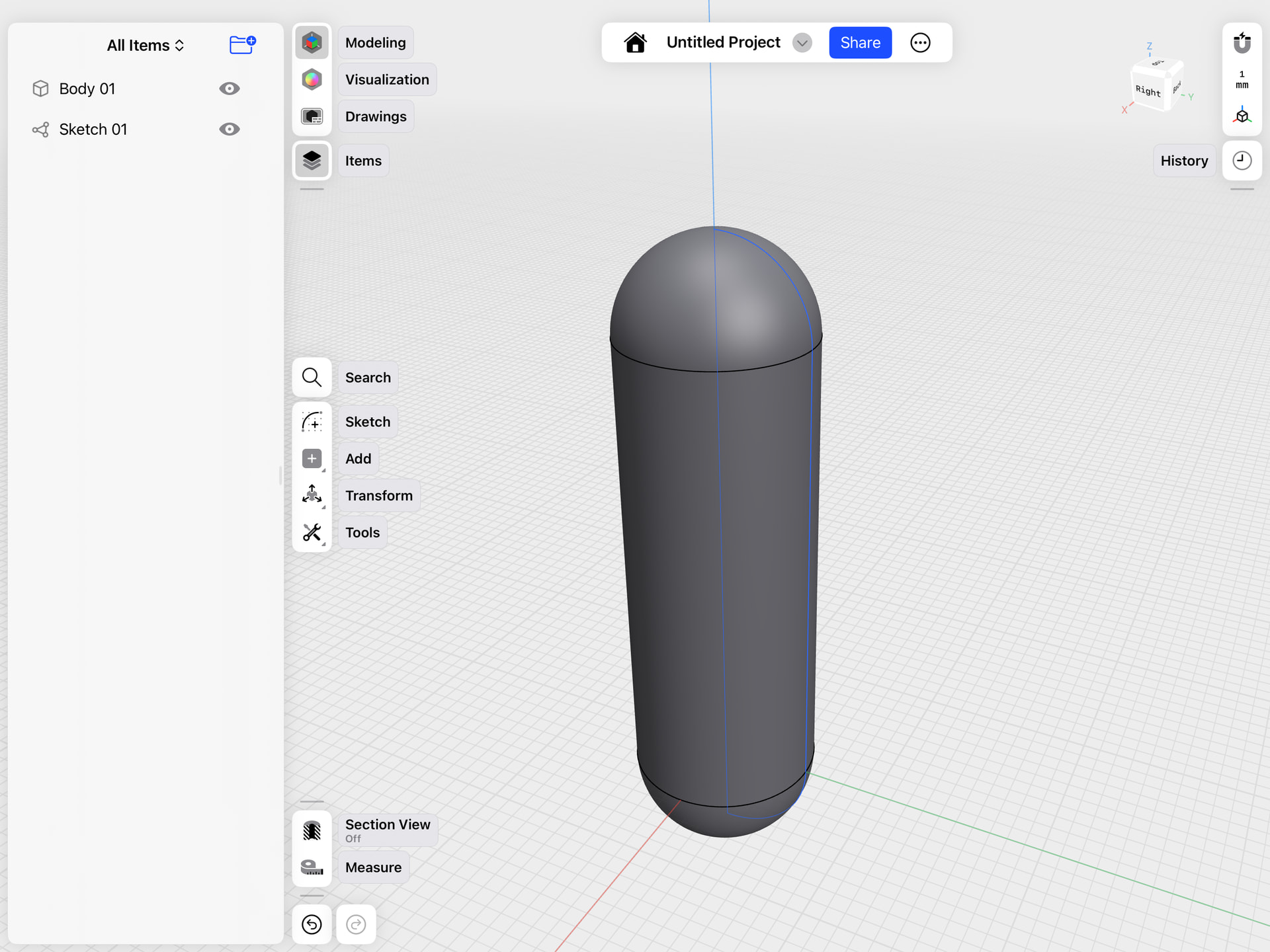
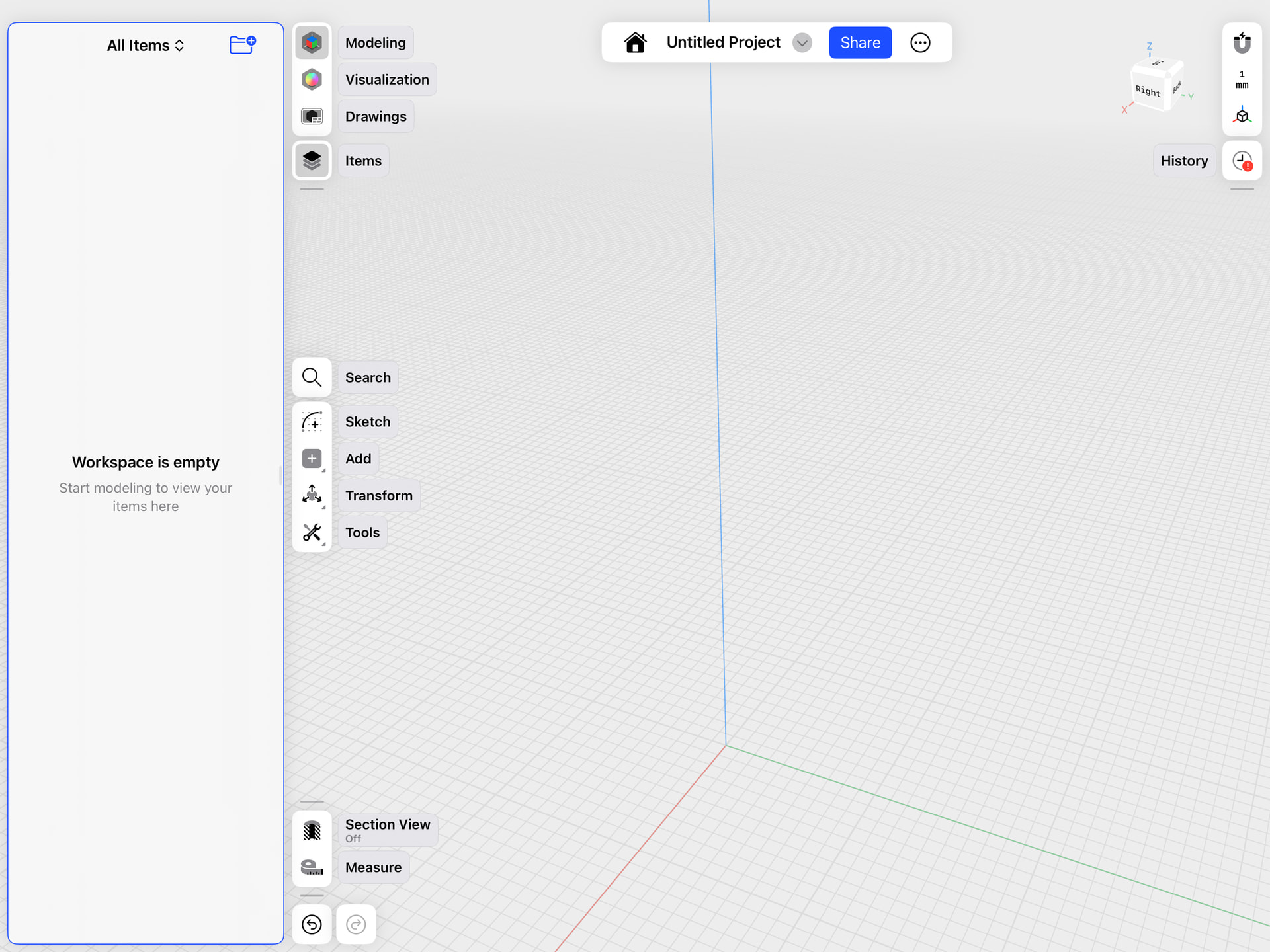
I noticed a few versions back that something had changed. I frequently use a lot of “sketches” to create bodies, and in the past to keep things neat, I would delete the sketches once the body was complete.
Now, when I create a closed path, and there is a sketch listed in the “Items” list, and I use a tool like Sweep or Revolve, a body results. However, when I try to delete the sketch, both the sketch and body disappear. If I turn off the visibility of the sketch, it doesn’t affect the body. But deleting does.
Can anybody tell me what the thinking was behind this change, and I would like to know if there’s any way to delete sketches and still retain the body. Thanks so much.
I draw a closed path…Shapr3D shows Sketch 01 in the Items list.
@CurlyBee This change was introduced a couple of years ago when Shapr3D become a History Based Parametric Modeling tool.
When you model in Shapr3D, each step creates dependencies and connections in the Design History. Sketches often serve as critical references for subsequent modeling steps. When you delete a sketch that other features depend on, it breaks these connections and can cause parts of your model to disappear.
For example, if you delete a base sketch that was used to create the initial geometry, all subsequent steps that relied on that sketch will break, causing the entire model to disappear. Similarly, if you delete part of a sketch that defines a specific feature (like a handle), the features that were built using that sketch geometry will also break and disappear.
Instead of deleting sketches that you don’t want to see, it’s recommended to use the Items Manager to hide them. Hidden sketches won’t be visible in the modeling space but will maintain the necessary connections in your design history.
I would suggest “playing” with design… do some modeling, then go back to the sketch and change it. Also play with the parameters in history… change the distance of extrude, etc. This “history base parametric modeling” is a great feature (but you don’t have to use it.)
Thanks, @Bob3DPO and @Tibi_Shapr3D. I was so comfortable with the program that I never bothered to learn this part because it did almost everything I needed it to do…I’ll check it out!